
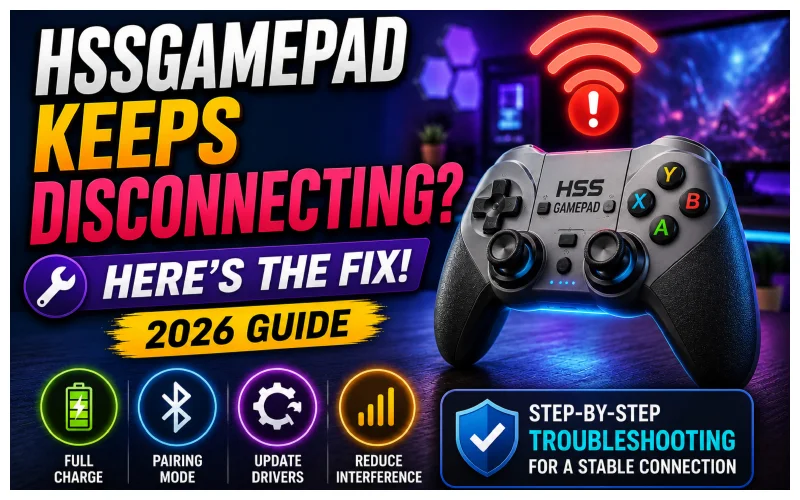
HSSGamepad disconnects are almost always caused by one of four things: low battery, an old Bluetooth pairing still holding priority on another device, wireless interference, or outdated firmware. Fully charge the controller, clear old pairings, re-activate pairing mode correctly, and update the firmware — this fixes the problem for most users within a few minutes.
A gamepad is only useful when it stays connected. Nothing kills a gaming session faster than lag, random disconnects, or a controller that simply won’t pair — especially in the middle of a competitive match. The good news is that most HSSGamepad connection problems stem from a handful of predictable causes, and nearly all of them can be fixed without any technical background. Here’s a complete breakdown of why these issues happen and how to solve them, step by step.
What Causes HSSGamepad Connection Problems
Connection failures are rarely caused by just one thing. More often, it’s a combination of small factors working together — low battery, a lingering pairing with another device, outdated firmware, or interference from nearby wireless equipment. Because multiple causes can overlap, it’s worth checking each possibility rather than assuming the problem has a single source.
The most common causes, in order of likelihood:
- Low battery — weakens the Bluetooth signal before a connection can even form
- Old Bluetooth pairings — a previous device still holds connection priority
- Wireless interference — Wi-Fi routers, earbuds, and other 2.4GHz devices crowd the signal
- Outdated firmware or drivers — creates compatibility gaps with newer systems
- Faulty USB port or cable — mimics a controller fault in wired mode
Battery and Pairing Mode Basics
Why a Full Charge Matters
Low battery is one of the most common reasons a controller refuses to connect. When power runs low, the Bluetooth radio is usually the first component affected, which weakens the signal before a connection can even be established. Charging the device fully before pairing removes this variable right away.
Activating Pairing Mode the Right Way
Pairing mode needs to be triggered correctly — usually by holding a specific button combination until an indicator light starts blinking. Rushing or skipping this step leaves the controller in standby instead of making it visible to nearby devices. Once pairing mode is properly activated, the host device should detect it within seconds.
Clearing Old Bluetooth Pairings
Several devices can remember a gamepad at once, but it can only stay actively connected to one at a time. If it was previously paired with a phone, console, or PC, that old connection may still be holding priority in the background. Removing (or “forgetting”) the gamepad from devices it’s no longer used with clears the way for a fresh, unobstructed pairing.
Wired vs. Wireless: Choosing a Stable Connection
Wireless is convenient, but it’s also more sensitive to distance, battery level, and interference than a wired connection. If problems keep coming back, switching to a USB cable is a reliable way to rule out wireless-specific issues entirely. Before doing that, test the USB port with another device first — a faulty port is easy to mistake for a faulty controller.
Signal Interference and How to Reduce It
Bluetooth devices share a crowded frequency band with Wi-Fi routers, wireless earbuds, and other short-range accessories. When several of these are active at once, their signals can overlap and weaken or drop the connection. Reducing the number of nearby wireless devices — or simply moving closer to the host device — often improves stability without changing anything else.
Keeping Drivers and Firmware Updated
Software plays a bigger role in connectivity than most people expect. Outdated PC drivers or old gamepad firmware can create compatibility gaps that didn’t exist when the device first launched. These gaps are usually closed through routine updates, so checking for the latest driver and firmware versions should be a standard maintenance habit — not a last resort.
Step-by-Step Troubleshooting Checklist
When a connection problem shows up, work through this list in order:
- Fully charge the controller before testing again.
- Turn on pairing mode and confirm the indicator light is blinking.
- Remove the gamepad from any devices it no longer needs to be paired with.
- Test a wired connection to rule out wireless interference.
- Check that USB ports and cables are working correctly.
- Update system drivers and controller firmware.
- Limit the number of other wireless devices running nearby.
Following this order usually isolates the cause within a few minutes.
Preventing Future Connectivity Problems
Long-term stability comes down to habits, not one-time fixes. Charging the controller regularly instead of letting it run flat, installing firmware updates as soon as they’re released, and using good-quality cables for wired connections all reduce the chances of repeat issues. If the controller keeps disconnecting after trying everything above, contacting the manufacturer’s support team is a reasonable next step — the cause may be a hardware fault that no setting can fix.
Frequently Asked Questions
Why does my HSSGamepad keep disconnecting randomly?
Random disconnects usually happen because of low battery, wireless interference from nearby devices, or an old Bluetooth pairing that’s still holding priority on another device. Charging the controller fully and forgetting unused pairings resolves this in most cases.
How do I put my HSSGamepad into pairing mode?
Hold the pairing button combination until the indicator light starts blinking. This signals that the controller is visible and ready to connect to a new device.
Why won’t my HSSGamepad connect to a new device?
If the gamepad was previously paired with another phone, console, or PC, that old connection may still be holding priority. Removing the gamepad from the old device’s Bluetooth list clears the way for a new pairing.
Should I use a wired or wireless connection?
Wireless is more convenient but more sensitive to battery level, distance, and interference. If disconnects keep happening, switching to a USB cable rules out wireless-specific issues entirely.
What if my HSSGamepad still disconnects after trying everything?
If the checklist above doesn’t fix it, the issue may be a hardware fault. Contacting the manufacturer’s support team is the recommended next step.
Final Thoughts
HSSGamepad connection issues are rarely permanent, and they’re rarely caused by a single unfixable fault. By checking battery levels, clearing old pairings, reducing interference, and keeping software current, most problems can be resolved without outside help. A little routine maintenance goes a long way toward keeping gameplay smooth and uninterrupted.